How to Make Tiny Desk AI Video From Photos, Free or Paid?
How to make Tiny Desk AI video from photos: the 4-step template route, free Viggle and CapCut options, the exact prompt, and which seat gets whom.
By Hit the Road Dude AI · Published · Updated · 6 min read
Which way of making the Tiny Desk AI meme should you pick?
There are four ways to make the Outstanding Tiny Desk AI meme, and the right one depends on how much editing you want to do. A ready-made template is fastest. Higgsfield is how the original was made. Viggle is the free route. CapCut is the simplest but does not put faces into the clip.
| Route | You need | Faces in the real clip? | Cost |
|---|---|---|---|
| Tiny Desk AI template | 1 to 5 photos | Yes, all five seats | Paid, per video |
| Higgsfield motion transfer | Your own cut of the concert, photos | Yes | Higgsfield plans |
| Viggle AI Mix | Your own cut of the concert, a photo | Yes; free plan limits multi-character sessions | Free with watermark |
| CapCut Tiny Desk template | Photos or clips | No, a slideshow over the sound | Free and Pro templates |
How do you make a Tiny Desk AI video from photos in 4 steps?
A Tiny Desk AI template has the clip, the three cuts and the “Outstanding” audio built in, so making the video takes four steps and no prompt. The steps below work on any five-seat template, including our Tiny Desk AI video generator (100, 200 or 600 credits a video, depending on quality).
- Add the close-up photo. One front-facing photo of the person the video is about. It replaces the laughing, waving performer from 5 to 11 seconds, the shot that is on screen longest.
- Fill the other seats, or leave them. Up to four more photos for the lead at the red keyboard, the sax solo and the backing singers on the left and right. An empty seat keeps its original performer.
- Pick a quality. 480p is enough to test a photo. 720p is the usual choice for TikTok and Reels, and 1080p is the sharpest.
- Generate and download. Rendering takes a few minutes. The result is a vertical 9:16 MP4 of about 13 seconds with the song.
Who goes in which seat of the Outstanding Tiny Desk band?
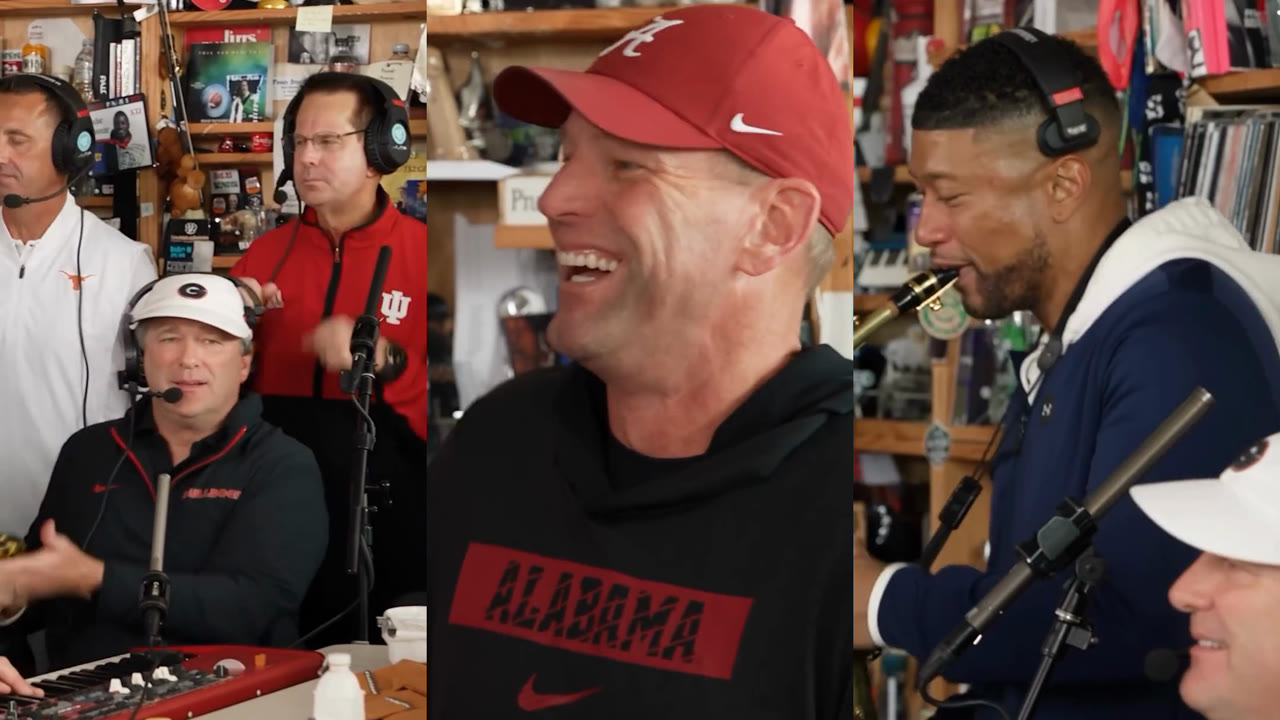
The Outstanding Tiny Desk clip has five seats across three shots, and the close-up decides who the joke is about. Put the birthday person, the friend who lost the bet or the team captain there. The other seats suit people who should be in on it.
- The laugh & wave (The big close-up, 5–11 s).
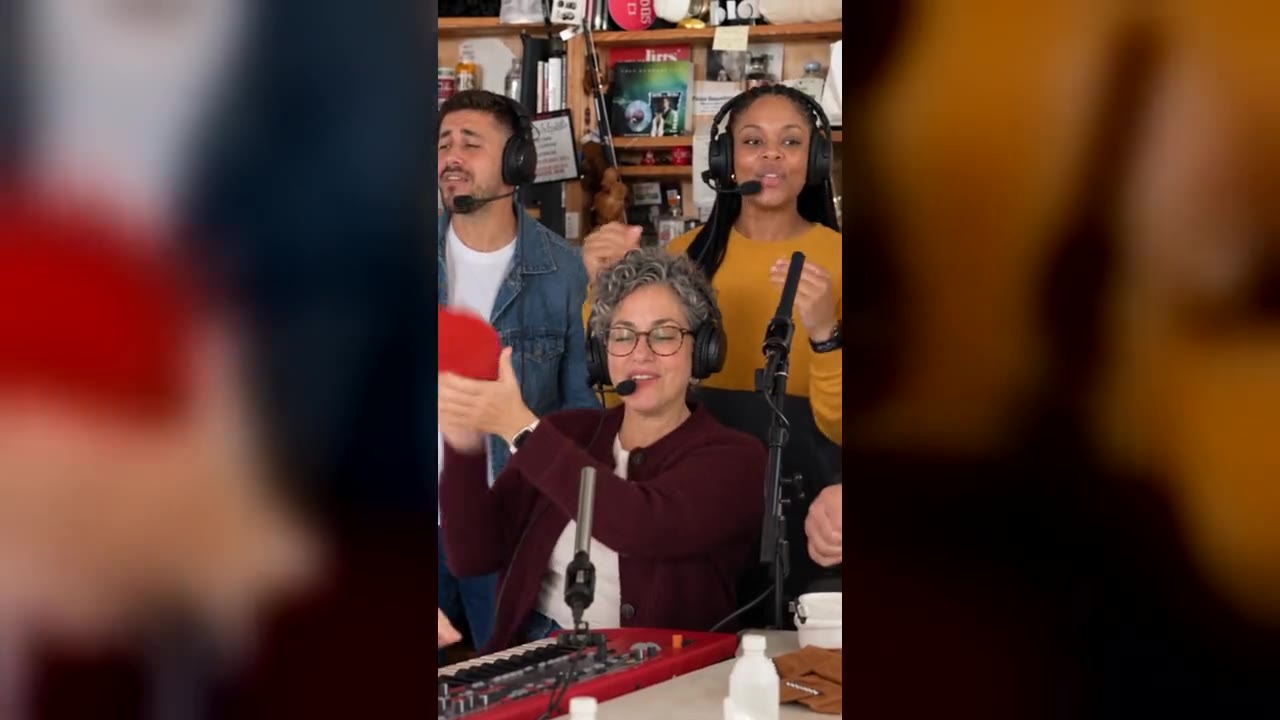
- Lead at the keys (Front and centre, 0–5 s).
- The sax solo (The last shot, 11–13 s).
- Backing vocal, left (Standing behind, 0–5 s).
- Backing vocal, right (Standing behind, 0–5 s).
Photos work best when each one shows one adult facing the camera, head and shoulders in frame, in even light. Sunglasses, side angles, heavy filters and group shots make the AI draw the wrong face.
What prompt recreates the Outstanding Tiny Desk clip?
The prompt below is the exact text our generator sends to the Genjutsu 1.0 video model, with the original clip as @Video1 and one photo as @Image1. It describes the performer in the clip, never the person in the photo, so it works for any upload. It says nothing about audio or lip-sync, because the song is laid under the finished video afterwards. Paste it into any motion-control model that accepts a reference video and images, and swap the descriptions if your cut of the concert differs.
Recreate @Video1 exactly, replacing one of its performers with the subject from the uploaded photos. @Image1 is an identity reference only. @Video1 is the reference for location, background, set, lighting, composition, choreography, timing, cuts and camera work, including the desk, the red keyboard, the microphones and everyone's headphones.

REPLACEMENT:

The performer who is the bald man with grey stubble and a white goatee, wire-rimmed glasses and black over-ear headphones, in a dark green-and-navy plaid flannel shirt, who fills the frame in the close-up from 5 to 11 s, laughing, grinning and waving a hand is replaced by the subject in @Image1, in every frame where they appear.

Every other performer in @Video1 stays exactly as they are. Each uploaded subject stays the same person for the entire clip, including when the shot changes; identities never swap and nobody is duplicated or added. Nothing about the replaced performers is used: not their faces, hair, skin tone, body shape or clothing.

Preserve each subject's exact face, hairstyle or fur, skin tone, outfit, accessories and body proportions from their photo, in every frame, and put the same headphones on them as the performer they replace. No glasses, sunglasses or jewelry unless the subject wears them in their photo. If a subject is an animal, it performs upright like a musician with its own paws, keeping its own fur, markings and eye color.

BACKGROUND:

Keep the background of @Video1 completely unchanged: the wooden bookshelves crowded with records, books, bottles, toys and posters, the desk with its red keyboard, water bottles and microphones on stands, the warm daylight, and the blurred fill at the left and right edges of the frame. Do not redesign, regenerate or replace the environment.

MOVEMENT AND CAMERA:

Every replaced performer copies the original performer frame by frame: the singing, the head and shoulder moves, the held note, the laugh, the grin and the wave, the saxophone playing, with the same facial expressions and the same timing. Keep the three shots of @Video1 and their cuts at 5.2 s and 11.4 s: the desk trio, the laughing close-up, the sax solo with the keyboard player in the foreground. Preserve the handheld framing and every camera move.

AVOID:

Identity swapping, merged or distorted faces, changing outfits, extra or duplicated people or limbs, warped hands, fingers or saxophone keys, flickering characters, an unstable or altered background, sudden camera jumps, and any text, captions, logos or watermarks.

FORMAT:

The same aspect ratio and framing as @Video1.
For more faces, the REPLACEMENT section gets one line per seat in photo order, for example “And the performer who is the woman with short curly grey hair and dark round glasses, in a burgundy cardigan over a white top, wearing headphones with a headset microphone, who sits at the red keyboard front and centre singing from 0 to 5 s and is seen again in the bottom-right foreground of the last shot is replaced by the subject in @Image2, in every frame where they appear.” The prompt also adds “They are different individuals: their faces must never blend, merge or exchange features.” The reference clip our template uses is 13.4 seconds long, cut at 5.2 and 11.4 seconds.
How do you make the Tiny Desk AI video for free with Viggle?
Making the Tiny Desk AI video for free takes about five steps in Viggle AI, and the result carries Viggle’s watermark. Viggle’s pricing page lists a free plan with daily credits, watermarked Mix videos and limits on multi-character sessions.
- Save the end of “Charlie Wilson: Tiny Desk Concert” from NPR Music, the last 13 to 19 seconds of “Outstanding”.
- Open Viggle’s Mix feature and upload that clip as the motion video.
- Upload one front-facing photo as the character and pick the performer to replace.
- Generate, then repeat for other faces if you want more than one.
- Add the Outstanding Tiny Desk sound in TikTok or Reels, lined up with the first shot.
How do you make an AI Tiny Desk concert like the original in Higgsfield?
The original AI Tiny Desk concert was made in Higgsfield by Jake Whipple, a Nashville-based songwriter. He told sportandstate.com that he ran Higgsfield’s motion-transfer feature on a vertical 30-second cut of Charlie Wilson’s concert and photos of the five coaches. It took about 30 minutes, at roughly a minute of generation per second of video, and the posted result is 19 seconds. The same route works with your friends’ photos instead of coaches.
Why does my Tiny Desk AI video look wrong, and how do you fix it?
- The face does not look like the photo. Use a sharper, front-facing photo in even light with no sunglasses. Test at 480p before paying for 1080p.
- Two faces blend together. Use one person per photo and say in the prompt that the subjects are different individuals whose faces never merge.
- Mouths move between lines. Remove “lip-sync” from the prompt and copy the original motion instead.
- The wave or the sax solo is missing. Generate again. Video models sometimes skip a beat, and tutorials recommend dropping takes that lose the laugh or the sax.
How do you post a Tiny Desk AI video on TikTok with the sound?
Post the Tiny Desk AI video as a vertical 9:16 clip and keep the “Outstanding” audio. If TikTok, Reels or Shorts mutes it, add the Outstanding Tiny Desk sound from the app’s library and line it up with the first shot. Say it is an AI parody in the caption and switch on the platform’s AI-generated label. The background to the trend is in our explainer on the Tiny Desk AI meme.